On this page
A team is a voluntary (right?) group of affiliates in one network. Members stay separate accounts, and each has their own login, API key, flows and balance. In return, teamleads — and optionally all members — see everyone's traffic and leads at once: shared reports, shared filter lists, shared white sites. For working with team reports, see Teamwork. This page explains how a team is built: how to create one, how to join and leave it, how a teamlead differs from a member, and which checkboxes decide what members see. An affiliate can belong to only one team. Only affiliates have teams, so an agency's account has no Team section.
Where the team is in the menu#
What you see in the menu depends on whether you are in a team and in which role.
| Your situation | What the menu shows |
|---|---|
| You are not in a team, and the network allows creating teams | One Team item with no subitems. It opens the New team form: Create a team |
| You are not in a team, and creating teams is closed | No item. You can get into a team with a join link or by decision of the network administrator: Join a team |
| You are a member | The Team group. It holds My team (if the teamlead shows the team page), the team reports (if the teamlead opened the statistics), Traffic filters (if the teamlead turned on the filters) and White sites (if the network administrator opened the team's white sites). More: Visibility checkboxes |
| You are a teamlead | The same group, but My team, the reports, Traffic filters and White sites are there whatever the checkboxes say, unless the network has hidden them. Only a teamlead also has Import spend and CPC and Cloak |
The “Team” menu item by your situation.
The network can also hide some items of the group, such as filters or white sites. No checkbox brings them back, and the teamlead does not have them either: Visibility checkboxes. If you cannot find an item named here, see If a section is missing from the menu.
Create a team#
You can create your own team if you are not in any team yet and the network allows creating teams. In a standard installation, creating teams is closed, and the network administrator sets teams up. If the menu has no Team item, ask the administrator to set up a team or to add you to an existing one.
-
Open the form. In the menu, open Team. The New team page opens with a short explanation.
-
Name the team. In Name, enter the team name (up to 100 characters) and click Create.
-
Set up the team. The Settings form opens right away. Write a description, decide what members see, and save the settings: Team settings.
-
Invite people. Copy the Join link from the My team page and send it to the people you want in the team: Invite people.
You become the only teamlead and the first member of the team right away. Three of the visibility checkboxes are on: the team page, the member list and the filters. Shared access to statistics is off. Until you turn it on, the other members do not see the team reports.
Invite people#
People join a team with a join link. The teamlead sees the link and hands it out. It is on the My team page in the Join link field (with a copy button next to it) and in the URL field of the Settings form. It looks like this:
https://lk.dalead.pro/gang-join/{team number}/{key}The key is created with the team. To issue a new one, the teamlead clicks Reset join link on the team page. The action runs at once, without confirmation, and the old link stops working. People who already joined with it stay in the team.
The join link lets anyone into the team, no questions asked. Any affiliate in the network who opens it and clicks one button joins the team, and no teamlead confirms anything. From that moment, the teamleads see that affiliate's traffic. Give the link only to your own people. If it ends up in the wrong hands, click Reset join link.
Join a team#
-
Get the link. The teamlead of the team gives it to you.
-
Open the link in your account. If you are not logged in, the link shows the login form. After you log in, the join page opens at once. After you register, you land on the home page, so open the link again.
-
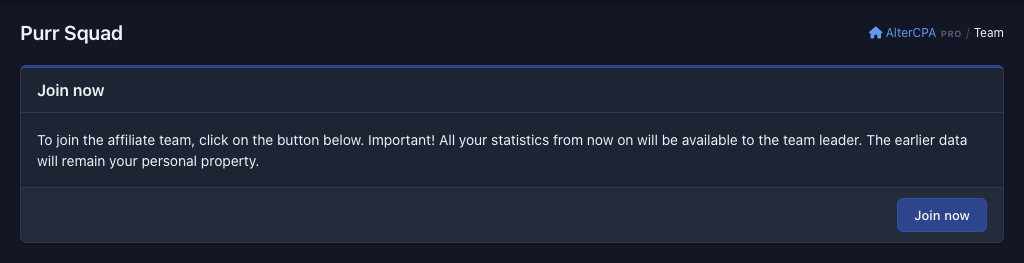
Read the warning. The page is titled with the team name. The Join now box says that all your statistics from this moment on will be available to the teamlead, while earlier data stays yours alone.
-
Confirm. Click Join now. You land on the My team page with the message “Welcome! You have joined the team.” If the teamlead has hidden the team page, the same message appears on the home page.
 123
Joining needs no approval from the teamlead, and the system has no join requests. Three cases are possible:
- The link is outdated or mistyped. If the teamlead has already reset the link or the link has a typo, you land on the home page with the message “Error: access denied!” Ask the teamlead for a new link.
- You are already in this team. The link opens the team page with the same welcome, even if its key is outdated. If the teamlead has hidden the team page, the welcome appears on the home page.
- You are in another team. Joining moves you to the new team. Your old membership ends at once, and the system does not ask you separately. You cannot be in two teams at the same time.
The network administrator can also add an affiliate to a team, without a link. Then you just see the Team group in the menu.
Teamlead and members#
A teamlead is not a separate account type but a mark inside one team. Whoever creates a team becomes its teamlead at once. A teamlead is still a member too: they are in the team list, and their traffic counts in the team reports.
| What | Member | Teamlead |
|---|---|---|
| Team page, member list, reports, filters, white sites | Only what the checkboxes open: Visibility checkboxes | Everything the network has not hidden, whatever the checkboxes say |
| Join link and the Reset join link button | No | Yes |
| Team Settings | No | Yes |
| Remove a member from the team | No | Yes |
| Remove team | No | Yes |
| Leave the team | Yes | No |
What a member can do and what a teamlead can do.
How leadership works:
- A team can have several teamleads. You assign them in the Teamleads field of the Settings form. The list shows the team members except you, so while you are alone in the team, the field does not appear.
- Teamleads have equal rights. Any teamlead can remove another from the teamleads, even the one who appointed them. The settings form warns about this itself.
- You cannot remove yourself from the teamleads. When you save the settings, you stay a teamlead whatever the Teamleads field holds. Only another teamlead can take the post away from you.
- A teamlead cannot leave the team. A teamlead has no Leave the team button, and the Delete button in their own row of the list answers “Error occurred”. To become an ordinary member, ask another teamlead to remove you from the Teamleads field. After that, you can leave on your own. The only teamlead can do just one thing, delete the whole team: Delete a team.
- A team can have no teamlead. In a team set up by the network administrator, a teamlead is sometimes not assigned. Then only the administrator manages the team, and members see what the checkboxes open.
Team page#
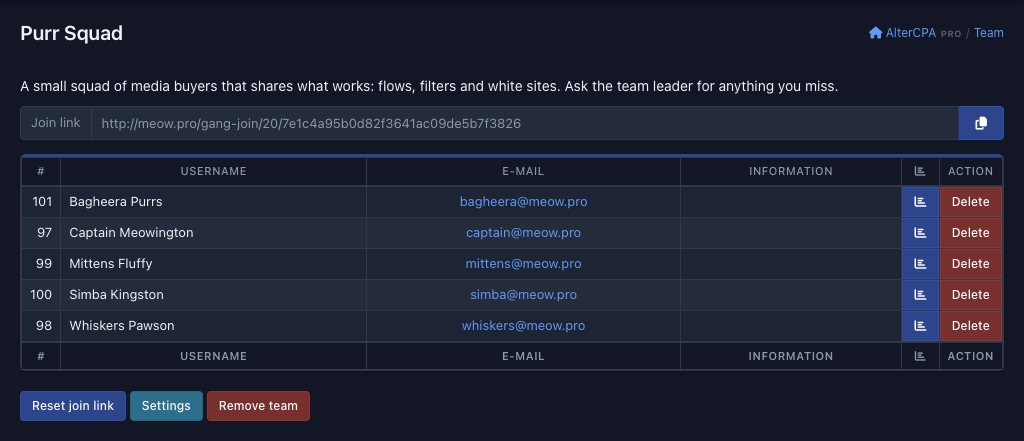
The My team item opens the team page. Its heading is the team name. Below it, from top to bottom:
- Description. The text from the Description field, if it is filled in.
- Join link. A field with a copy button. Teamleads only.
- Member table. A member sees it if the teamlead turned on the member list. A teamlead always sees it. The columns are the user number (#), Username, E-Mail and Information, which holds the member's contacts from their profile if they entered any. If the team reports are open to you, each row has a button with a chart icon. It opens the Statistics window with links to the same team reports, already filtered by this member (Teamwork). Only teamleads get an Action column in the table, with the Delete button.
- Buttons at the bottom. A teamlead has Reset join link, Settings and Remove team. A member has Leave the team.
 1234
Team settings#
A teamlead opens the form with the Settings button on the team page. Click Save to apply everything at once. The cabinet shows “Success”, and members see the new look of the team the next time they open the page.
| Field | What it is |
|---|---|
| URL | The join link, read only: Invite people |
| Teamleads | A choice among the team members: Teamlead and members |
| Name | The team name, up to 100 characters. It is the heading of the team page |
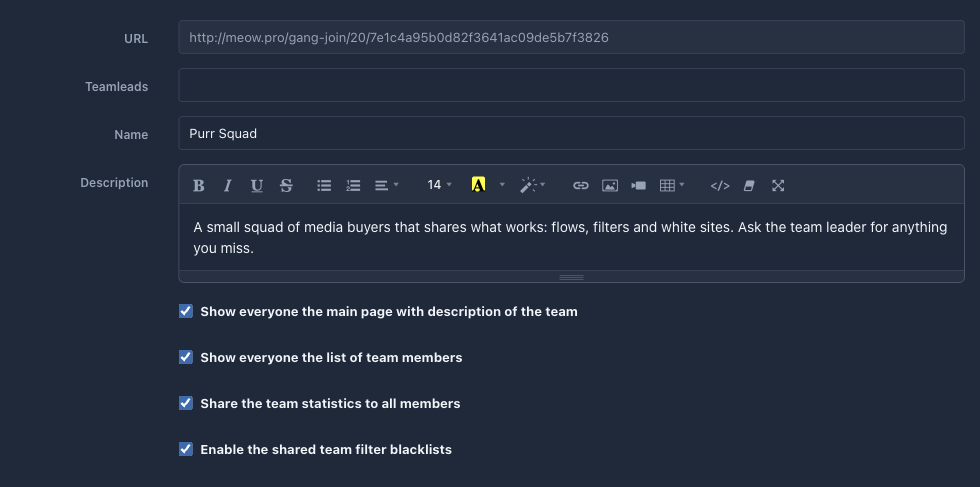
| Description | Text in a visual editor. The form advises you to show the team page to members and to put the working rules and the teamleads' contacts in the description. Everyone who can see the team page sees the description |
| Four checkboxes | What members see: Visibility checkboxes |
Fields of the “Settings” form.
 123
Visibility checkboxes#
Four checkboxes of the Settings form decide what members see and open for themselves. They do not limit the teamlead, who sees everything the network has not hidden. A new team created by an affiliate starts with three of the four checkboxes on: the team page, the member list and the filters.
| Checkbox | What it opens for members | If off |
|---|---|---|
| Show everyone the main page with description of the team | The My team item: the team description and the Leave the team button | The item is gone, and the page address answers “Error: access denied!” The member then does not see Leave the team and cannot leave alone, so only a teamlead can help. Reports and filters keep working while their checkboxes are on |
| Show everyone the list of team members | The member table on the team page | The team page has no table, and so no per-member statistics buttons |
| Share the team statistics to all members | The team reports in the menu and the per-member statistics buttons | A member sees only their own statistics, and the menu has no team reports |
| Enable the shared team filter blacklists | The Traffic filters item with the team's shared black lists | No item |
Checkboxes of the “Settings” form.
The join page says the statistics will be available to the teamlead. But if shared access to statistics is on, every other member sees each member's numbers. Warn people about this when you invite them to the team.
The teamlead's form has only these four checkboxes. The network administrator sets two more at your request:
- Enable the shared team white site storage. It opens the White sites item with the team's shared list for members. A teamlead always sees this item.
- Hide the main team page from everyone, even from teamleads. It removes the My team item for everyone, teamleads too. While the checkbox is on, a teamlead can reach neither the settings nor the join link.
Team checkboxes work on top of the network's general settings, not instead of them. If the network hides filtering, white sites or a single report, the matching team item does not appear for members or for the teamlead. If the network hides all statistics reports, the form has no checkbox for shared access to statistics. If it hides filtering, the filters checkbox is missing.
Leave a team#
A member leaves on their own:
-
Open the team page. In the menu, open Team › My team. If the item is missing, the teamlead has hidden the team page. Ask them to remove you from the list.
-
Click “Leave the team”. The button is at the bottom of the page.
-
Confirm. The system asks: “Are you sure you want to leave the affiliate team? There will be no turning back! Statistics earned within the team will remain available to the team.” Accept, and you land on the home page.
A teamlead removes a member with the Delete button in the member's row of the list. The system asks “Do you really want to delete this item?” After the teamlead confirms, it answers “Success”. The account is not deleted.
Whatever happens, you keep your account, flows, orders and money. Only the team membership changes. The team number is written into every click and every order at the moment it appears. So when you leave, you do not erase from the team reports what you earned while you were in the team, and when you join, you do not add your past traffic to them. You can come back only by a join link.
Delete a team#
Only a teamlead or a network manager can delete a team.
-
Click “Remove team”. The button is at the bottom of the team page.
-
Enter the word
delete. The browser opens a window with a warning. The team is deleted only if you enterdeletein it (in Latin letters, lowercase). Any other text cancels the deletion.
This cannot be undone. The team disappears together with its name, description, checkboxes and join link, and all members, teamleads too, are left without a team at once. The team's shared filter lists and white sites become unavailable. Members' accounts, flows, clicks, orders and money stay where they are. The confirmation window promises that “all statistics and data will be deleted”, but only the team itself is deleted. Clicks and orders stay with their owners.
If you are the only teamlead and want to hand the team over, first appoint another teamlead in the Teamleads field, then ask them to remove you from the teamleads: Teamlead and members.