On this page
Your earnings from leads build up in your account in the cabinet. This page covers the balance and hold, wallets, requesting a withdrawal, and the history of requests. It is the same for affiliates and agencies.
The network sets the minimum withdrawal, the commissions, whether you have one wallet or several, and many other rules, so your screen may differ from the one described here. What the network sets lists everything that depends on the network.
Where to find it in the cabinet#
Money is under the Finance menu. If you don't see it, the network has hidden the section from your role (If a section is missing from the menu).
| Menu item | What it holds |
|---|---|
| Finance › Balance and operations | The balance and hold in each currency, the history of operations, and the Withdraw and Currency exchange buttons |
| Finance › Withdrawal | Requesting a withdrawal, awaiting and completed withdrawals |
| Finance › Withdraw settings | Wallets and withdraw methods: where the network sends your money |
Pages of the “Finance” section.
Your balance also shows in the top bar. The money icon next to your name shows the amount in the network's main currency. If there is one currency and nothing on hold, the icon leads to Balance and operations. If the network has several currencies or you have money on hold, the icon opens a small menu. The menu has a Finance link, the label On the account now with the amounts in each currency, and, when something is on hold, the label On hold with its amounts.
Balance#
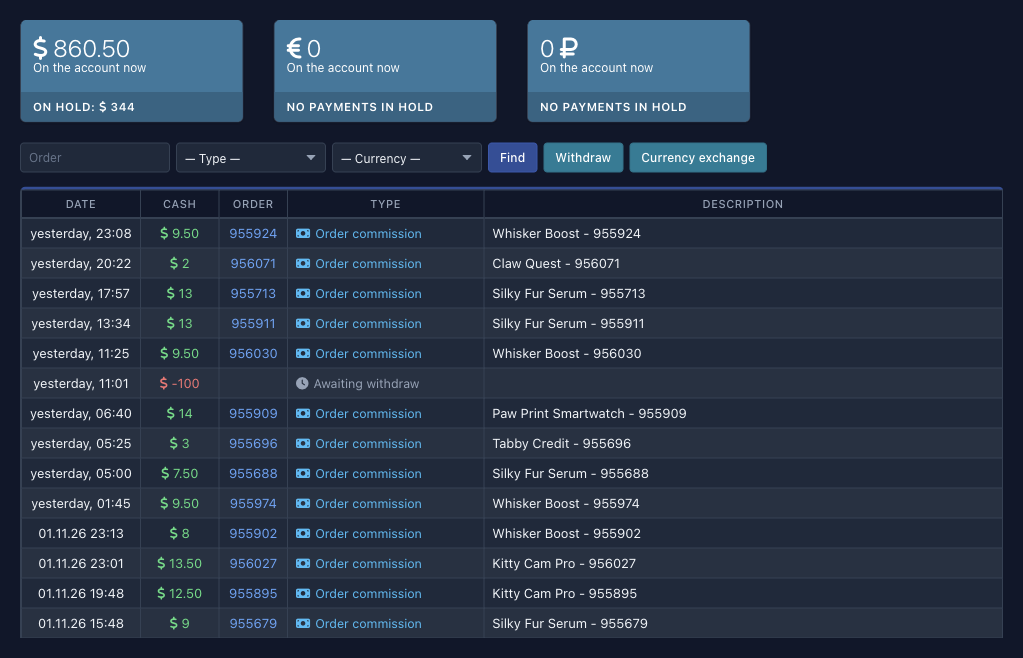
The Balance and operations page starts with cards. There is one card for each currency the network keeps accounts in, the main one and any additional ones, even if the balance is still zero. A card shows the amount in large type, the label On the account now under it, and at the bottom On hold with the amount on hold or the text “No payments in hold”. Click a card to keep only that currency's operations in the history.
 1234
The two amounts on a card mean different things:
| Label | What it is | Can you withdraw it |
|---|---|---|
| On the account now | The sum of all operations in this currency from the history: the commission credited for leads, plus requested withdrawals with a minus sign | Yes, this is the available amount |
| On hold | The commission for leads that are in the “Hold” phase now | No, not until the hold ends |
Amounts on a currency card.
There is no separate “frozen for withdrawal” amount, because a requested withdrawal is subtracted from the balance at once (below). So On the account now is the amount you can still request (unless the method has its own limit, below). Money in different currencies is not mixed and is never converted to another currency automatically. For example, the history has two “Order commission” operations of 15 and 25 dollars and a requested withdrawal of 20. The balance is 15 + 25 − 20 = 20 dollars.
Summary statistics count the commission for leads, including leads in the “Hold” phase, and convert the amounts to the main currency at the current rate (Metrics and formulas). Your account, on the other hand, adds up posted operations, each currency separately. So the total in a report for a period and the total of operations on your account need not match.
How money gets into your account and out of it#
Every movement of money leaves a record in the history of operations or changes the hold. What happens to the amounts:
| What happened | On the account now | On hold | Record in the history |
|---|---|---|---|
| A lead enters the “Hold” phase | no change | grows by the lead's commission | none |
| The hold ends and the lead is approved | grows by the commission | shrinks by the same amount | “Order commission”, plus |
| A lead is approved at once, with no hold | grows by the commission | no change | the same record |
| A lead on hold is declined | no change | shrinks by the lead's amount | none |
| You request a withdrawal | shrinks by the request amount | no change | “Awaiting withdraw”, minus |
| The withdrawal is completed | no change | no change | the record changes its type to “Completed withdraw”, the amount stays the same |
| The request is declined or canceled | the request amount returns | no change | the record disappears |
How money moves on your account.
The lead phases are explained in the reference of values. The hold period is set in the Hold section of the Offers page. For an agency, the network can set the hold period separately for a source, that is, for an affiliate ID inside the agency.
If the phase or amount of a lead changes after its commission has been credited, the platform corrects or deletes the record itself and recalculates the balance.
History of operations#
Under the cards on the Balance and operations page is a table of all operations on your account, newest first, 50 per page. Positive amounts are highlighted in green and negative ones in red.
| Column | What it shows |
|---|---|
| Date | When the operation was posted |
| Cash | The amount in the currency of the operation. The link keeps only operations in this currency in the table |
| Order | The order number, if the operation relates to a lead. The link keeps only operations for this order |
| Type | The type of operation. The link keeps only operations of this type |
| Description | An explanation. For a lead's commission, it is the offer name and the order number. For a requested withdrawal, it is your comment. For the network's manual operations, it is the administrator's text |
Columns of the history of operations.
Above the table is a search: the Order field, the Type and Currency lists, and the Find button. The conditions apply together. To clear them, open Balance and operations from the menu again. On a narrow screen, the search and the Withdraw and Currency exchange buttons are hidden behind the Search button.
Operation types an affiliate may have:
| Type | When it appears |
|---|---|
| Deposit | The network added money to your account itself. The reason is in the description |
| Order commission | The commission for a lead after the hold, or right away if there is no hold |
| Awaiting withdraw | A requested withdrawal that is not completed yet. The amount is negative |
| Completed withdraw | The withdrawal is completed |
| Additional services | The network posted an operation for an additional service. The details are in the description |
| Currency exchange | Two records of one exchange: a debit in one currency and a credit in the other |
Operation types.
The type list has other values too. They serve other roles and the network's programs, and an affiliate usually has no such operations. The network can also post a manual adjustment of any type. Look for its explanation in the Description column.
Currency exchange#
If the network allows it, the Balance and operations page has a Currency exchange button. It moves money between your accounts in different currencies.
-
Open the window. Click Currency exchange.
-
Choose what you give. In the I give list, select the currency you are converting from. In the amount field under the list, enter an amount that is no larger than your balance in that currency. If the field is empty when you select a currency, the whole balance fills in.
-
Choose what you get. In the I get list, select a different currency. Once you enter an amount, the lower field shows what you will get. The calculation uses the network's rate and the exchange commission, if the network charges one. If the currencies are the same or the amount is larger than the balance, the field in question turns red and the button is inactive.
-
Confirm the exchange. Click Exchange. The exchange goes through at once, and the history gets two “Currency exchange” records. You cannot cancel an exchange in the cabinet.
Where the money goes#
The network sends money to the wallet you enter on the Withdraw settings page. Here, a wallet is a withdraw method (if the network has set up a list of methods, such as Capitalist, USDT TRC20, USDT ERC20 and the like) and a number. In the Wallet field, enter a card number, a wallet ID in a payment system, a linked phone number, or a bank account number, as the method requires.
If the network allows several wallets, the Withdraw settings page is a list of your wallets with an add form above it.
-
Open the settings. Select Finance › Withdraw settings.
-
Fill in the form. Select a method from the list (it appears if the network has set up methods) and enter the number in the Wallet field.
-
Add the wallet. Click Add. The wallet appears in the list, and an email about the new withdraw method goes to the address in your profile.
-
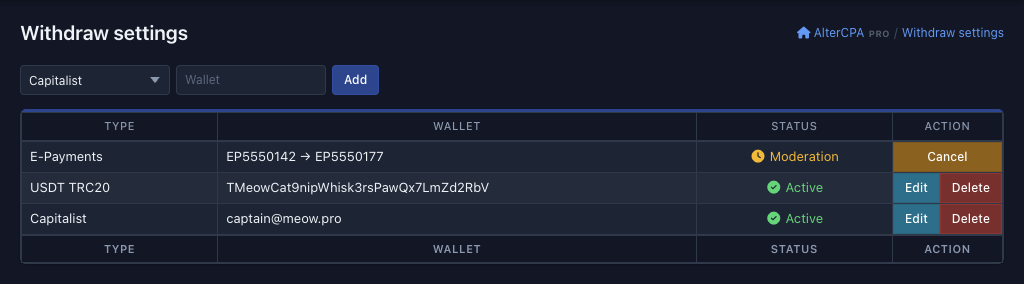
Wait for the check, if there is one. If the network checks wallets, a new wallet gets the status Moderation and can't be used for withdrawals yet. When the moderator approves the wallet, its status becomes Active and you get an email. If the moderator declines it, the status becomes Declined and you get an email too.
 1234
The wallet status shows in the Status column:
| Status | What it means | What you can do |
|---|---|---|
| Active | The wallet is verified, or no check is needed. You can request a withdrawal | Edit, Delete |
| Moderation | A new wallet or a new number is waiting for a check. The Wallet column shows “old number → new number”, and for a new wallet the part before the arrow is empty. You can't request a withdrawal to such a wallet | Cancel restores the old number. For a new wallet, Delete instead |
| Declined | The moderator did not approve the number | Cancel or Delete, as for a wallet under moderation |
Wallet statuses.
Other things to know about wallets:
- The Edit button opens a page with a single Wallet field. You can't change the method of an existing wallet. If you need another method, add a new wallet. If the network checks wallets, a wallet goes to moderation after you change its number, and withdrawals to it stop until the moderator responds or you click Cancel.
- Delete asks for confirmation. If you never requested a withdrawal to the wallet (neither awaiting nor completed), it is deleted for good. Otherwise it only disappears from the list, and the withdrawals in the history keep its number.
- The limit is ten wallets, deleted ones excluded. Adding an eleventh gives “Error occurred”.
- For every wallet you add, change or delete, the platform sends an email to the address in your profile. If you didn't do it, contact support at once.
If the network allows only one wallet, the Withdraw settings page is a form with the Withdraw method field (if methods are set up) and the Wallet field. Changes save at once with no moderation, and you get an email about them.
Requesting a withdrawal#
You can request a withdrawal when three conditions are met.
- The network lets you request withdrawals yourself. If not, and you have an active wallet, the Withdrawal page shows the text “Withdraws are processes by administrator, you don't need to request them” instead of the button. The administrator sends the money but still needs to know your wallet, so enter it in Withdraw settings.
- You have an active wallet. Otherwise the page shows a red message “You have no withdrawal methods set” and the Set up withdraw methods button, which leads to Withdraw settings.
- Your balance is at least the minimum withdrawal amount.
-
Open the request window. Select Finance › Withdrawal and click Withdraw. The Withdraw button is also on the Balance and operations page. It leads to the Withdrawal page.
-
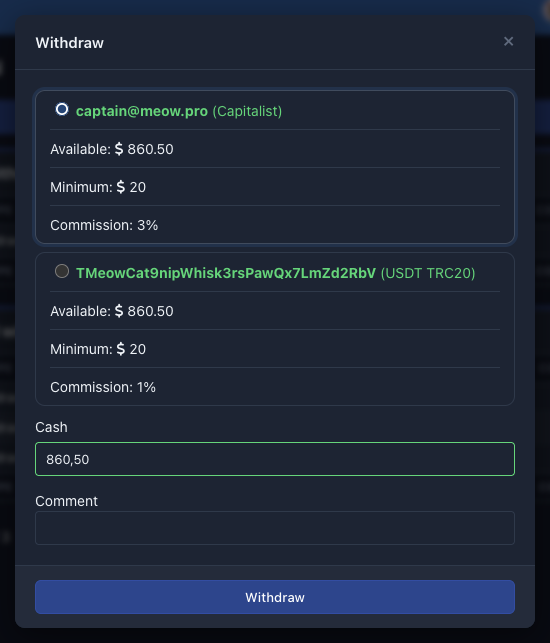
Select a wallet. Each wallet shows its number, the method in parentheses, and its terms: Available, Minimum and Commission. The rows for the minimum and the commission show only if they are set. A wallet in gray lacks the balance to reach its minimum, so you can't request a withdrawal to it.
-
Enter the amount. The Cash field is pre-filled with the whole available amount. Enter less if you want. While the amount is below the minimum or above the available amount, the button at the bottom of the window is inactive and the field is highlighted in red.
-
Add a comment if you want. The Comment field is optional. Its text goes into the request and shows in the withdrawal lists and in the history of operations.
-
Submit the request. Click Withdraw at the bottom of the window. The message “Your request was sent” appears at the top of the page, the request joins the Awaiting withdraws list, and the amount is subtracted from your balance at once. The platform also sends an email to your address.
 1234
Withdrawal terms come from the network settings and the method:
| Term | Rule |
|---|---|
| Currency | Money comes from the balance in the currency of the method: a method in euros debits euros, a method in dollars debits dollars |
| Minimum | A method can have its own minimum, and then it applies. If it has none, the network's general minimum withdrawal applies. The request amount can't be lower |
| Maximum | A method can have an upper limit for one request. The available amount is the smaller of the balance and the limit |
| Commission | A method can charge a commission as a percentage. In the request window it is in the Commission row. It is deducted from the requested amount. Your account is debited the whole request amount, and the withdrawal lists and the history of operations show that same amount. The network sends the amount minus the commission: amount × (100 − commission) / 100. The platform gives the network this figure (“To pay”) when the withdrawal is made, and you don't see it in the cabinet |
| No methods | If the network has no withdraw methods, the withdrawal lists have no Type column, money comes from the balance in the main currency, and the general minimum applies |
Withdrawal terms.
For example, a method has a 5% commission and a minimum of 20, and your balance is 60. You request 20. Your account is debited 20, which leaves 40, the withdrawal lists show 20, and the network sends 20 × (100 − 5) / 100 = 19.
Requests and withdrawal history#
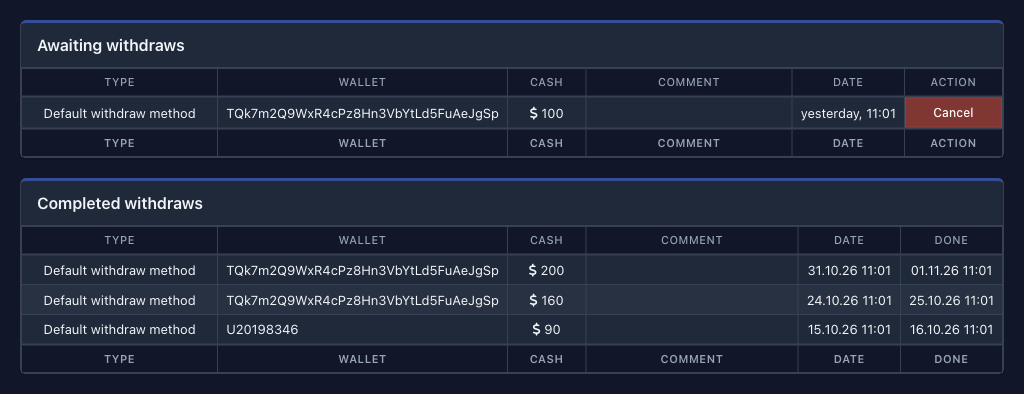
Below the button, the Withdrawal page has two lists.
- Awaiting withdraws shows only if there are requests the network has not completed yet. Columns: Type (the method, if the network has methods), Wallet, Cash, Comment, Date and Action with the Cancel button.
- Completed withdraws lists the completed requests. The columns are the same, without Action, plus Done, the completion date. The list runs from newest to oldest by completion date, 30 records per page. Until you have a completed withdrawal, it says “No transactions”.
The method and wallet number in a row are the ones you chose when you made the request. If you change the wallet later, the old rows don't change. The Comment column may show a note from the administrator instead of your text, because the administrator can replace it on an awaiting request.
 123
A request has only two states, and each has its own list. There is no separate “declined” status:
| Where the request is | What it means | What the history of operations shows |
|---|---|---|
| Awaiting withdraws | The request is accepted and the network has not completed it yet | “Awaiting withdraw”, with a minus sign |
| Completed withdraws | The network has sent the money | “Completed withdraw” |
| Nowhere | The network declined the request or you canceled it | The record disappears and the amount returns to your account |
Where to find a request.
The platform sends an email to the address in your profile when you request a withdrawal, when it is completed, and when it is declined or canceled. The email has the amount, the method and the wallet number. If you didn't request the withdrawal, contact support.
The Cancel button removes an awaiting request at once, without confirmation. The record disappears, the amount returns to your account, and you get an email about the cancellation. You can cancel only an awaiting request, not a completed one. The network completes requests, and the platform sets no deadline for it. Ask the network in Help.
What the network sets#
The network sets the withdrawal rules, and you see them on your screens:
| What the network sets | How you see it |
|---|---|
| Self-service withdrawal requests | If they are off, the Withdrawal page shows a text about the network administrator instead of the button |
| A ban on canceling requests | The Awaiting withdraws list has no Action column |
| One wallet or several | In Withdraw settings, a form with two fields or a list of wallets |
| Wallet checks | The status Moderation after you add a wallet or change a number |
| Withdraw methods | A list of methods when you add a wallet. A method has its own currency, minimum, maximum and commission |
| Minimum withdrawal | The Minimum row in the request window, if the method has no minimum of its own |
| Additional currencies | Several cards on the Balance and operations page |
| Currency exchange | The Currency exchange button |
Network settings and how they show in the cabinet.
If something goes wrong#
| What you see | Why | What to do |
|---|---|---|
| No Finance item | The network has hidden the section from your role | Ask the network's support |
| “You have no withdrawal methods set” | You have no active wallet: you have no wallets, or all of them are waiting for moderation | Add a wallet in Withdraw settings or wait for the moderator's reply |
| “Withdraws are processes by administrator…” | The network does not let you request withdrawals yourself | You don't need to request anything. The network sends the money itself, to the wallet from Withdraw settings |
| The button in the request window is inactive | The amount is below the minimum, above your balance, or above the maximum of the method | Change the amount or select another wallet |
| The wallet in the request window is gray | The balance in the currency of the method is below its minimum | Wait for more commission to arrive, exchange currency (if the network allows it), or select another method |
| “Error occurred” after you submit | The server rejected the request: the balance changed, the wallet is under moderation, or the request is outside the limits | Open the page again and check your balance and the wallet status |
| No Cancel button | The network has banned canceling requests | Write to Help |
| A requested withdrawal is in neither list | The network declined the request: the record disappears and the amount returned to your account | Find the email about the decline and ask the network for the reason |
Typical cases.