On this page
Every team member has their own flows, split tests, and postbacks. What the team shares is different: reports on the traffic and leads of all members, a set of offers, black lists, filtering campaigns, and the white site storage. The Team page explains what a team is, how to join and leave it, who the teamlead is, and which checkboxes a team has. An agency has no team, and its menu has no “Team” section either.
Who sees what#
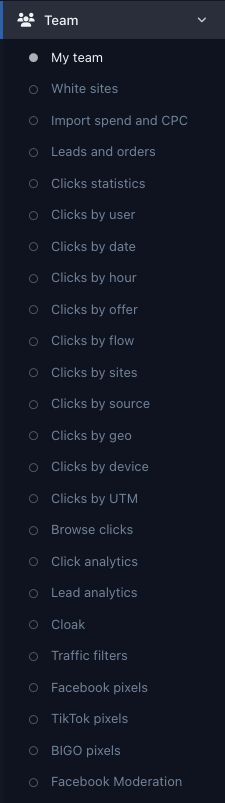
The Team section with these items appears in the menu only for an affiliate who belongs to a team. What it contains depends on the role. The teamlead sees all items that the network has not hidden. A member sees only what the team's checkboxes open.
| Team menu item | Teamlead | Member |
|---|---|---|
| My team | Yes, unless the Administrator has hidden the team main page | If the Show everyone the main page with description of the team checkbox is on |
| Reports: Leads and orders, Clicks statistics, Clicks by user, and the rest (below) | Yes | If the Share the team statistics to all members checkbox is on |
| Traffic filters | Yes | If the Enable the shared team filter blacklists checkbox is on |
| White sites | Yes | If the Enable the shared team white site storage checkbox is on |
| Cloak | Yes | No such item |
| Import spend and CPC (Team expenses) | Yes | No such item |
What the “Team” menu shows to the teamlead and to a member.
The teamlead sets the checkboxes in the Settings form on the My team page. The form has no white sites checkbox. The Administrator sets it in the team card, together with the team's offer lists. The checkboxes are described in detail on the Team page.
The network can hide the section entirely: if it does not show filtering, white sites, or expense import, the team items for them are missing too. Any report that the network hides in personal statistics disappears for the team as well. A member with no checkboxes on sees none of the table's items in the Team section.
Team reports#
Team reports count the clicks and orders of all members. The panel, columns, periods, and formulas are the same as in personal reports: Summary statistics and Metrics and formulas. Team reports include only the clicks and orders a member received while on the team, because the team number is written into a click and an order when they appear.
Team reports differ from personal ones in three ways:
- The User list. It is on the panel of every report except Lead analytics. Choosing a person narrows the report to that member (below). In the personal reports by date, by hour, by country, and by source, the Flow list is on the panel. In team reports it moves to the “Search” window. Leads and orders and Browse clicks get one more column, “User”.
- Grouping by member. “User” is in the dimension list on the Clicks statistics page, it is the first level in Click analytics, and it underlies the Clicks by user report (below). The other reports do not break down by member. To see one person, select them in the list.
- Shorter chains. The team Clicks by UTM and Click analytics reports have no “Customer” and no “SubID”. The Clicks by UTM chain ends at “Domain”, and in Click analytics “Device” comes right after “Domain”. The other hierarchical team reports, Clicks by sites and Clicks by device, work like the personal ones.
| Team menu item | Personal report and differences |
|---|---|
| Clicks statistics | Free choice of dimension. The dimension list includes “User” |
| Clicks by date | By date |
| Clicks by hour | By hour |
| Clicks by offer | By offer |
| Clicks by flow | By flow: flows of all members |
| Clicks by geo | By country |
| Clicks by source | By source |
| Clicks by sites | Hierarchical report, same chain |
| Clicks by device | Hierarchical report, same chain |
| Clicks by UTM | Hierarchical report: the source, campaign, content, term, and medium tags and the domain, without Customer and SubID |
| Click analytics | Hierarchical report: User, then the chain of the personal report without Customer and SubID, 19 levels in all |
| Lead analytics | A separate lead report, like the personal Lead analytics, with its own windows for grouping and column settings. The “User” condition is in the “Search” window |
| Browse clicks | Click log of all members |
| Leads and orders | Lead list of all members |
| Clicks by user | No personal counterpart, see Clicks by user |
Reports of the “Team” group.
Rows of hierarchical reports expand the same way as in personal ones: How to expand a row. The network can add its own reports to the Team group, and they are not in the table.
Report for one member#
To see one person's numbers without the team totals, narrow the report in one of two ways:
- The “User” list. Select a name in the User list on the panel of any team report and click Show. The list contains all team members.
- The Statistics button in the member list. On the My team page, a member's row has a button with a chart icon. It opens a window with buttons for the team reports, already narrowed to that person. The teamlead always has the button. A member has it if both the member list and shared access to statistics are open to them.
A narrowed report shows the same clicks and orders, but only for one member. If the report URL names a person who is not on your team, the report ignores it and shows the whole team.
Clicks by user#
The Clicks by user report has one row for each member who had clicks or leads in the period: clicks, uniques, CR, EPC, approve, leads by phase, and money. The columns are the same as in the other reports, and Metrics and formulas explains what they mean. Periods and the Show target (valid) clicks only button work as in Summary statistics. The panel lets you limit the report to one offer.
The lead counters in a member's row are links to the team's Leads and orders, already filtered by that person (From a number to leads). The row is labeled with the member's email address, or with the name if the network turned on the “Affiliate names instead of emails” setting.
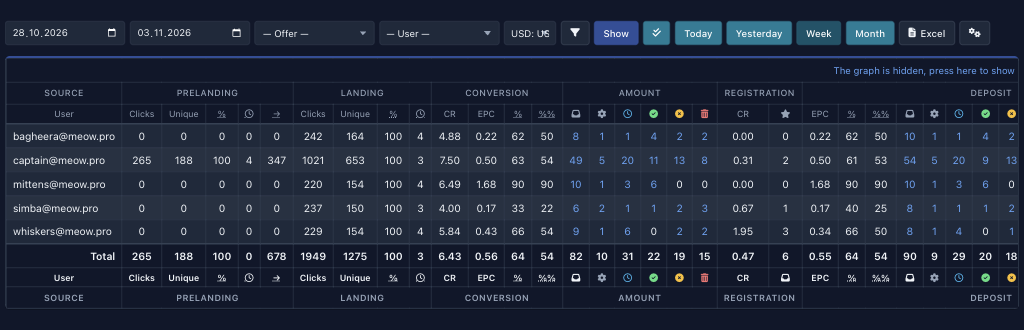
Shared access to statistics opens all of the team's numbers to members: everyone's flows, sources, tags, leads, and money. The rows of the “Clicks by user” report are labeled with email addresses, so colleagues recognize them even if the member list on the My team page is closed to them.
Team traffic filters#
A team has three filtering tools: shared black lists, the members' filtering campaigns, and campaign statistics. They work like the personal ones and run on top of them: Filtering campaigns and white sites. If the network hides filtering, the team items are missing too.
Team black lists
The Team › Traffic filters item opens the “Team filters” page. These are the shared black lists. Types, entries, import and export, update by URL, and all the buttons are the same as in your own black lists. The differences are these:
- Anyone who can open the page can edit. Not only the teamlead: a member whose team checkbox is on adds lists, changes entries, switches Status and Default, and deletes lists the same way.
- All members see the lists. An active team list appears in the Filters set field of every campaign of every member, next to the network's lists and the personal ones. A member does not need the checkbox for this. It is needed only for the page with the lists.
- A “Default” list works for everyone. It applies in every member campaign where no sets are chosen manually. A team list of addresses, subnets, or IPv6 marked Default is also attached to the simple Black lists filter in the flows and split tests of all members (Simple filters).
Any change to a list takes effect immediately on the traffic of all members.

Members' campaigns: “Cloak”
The Team › Cloak item is only for the teamlead. It collects the filtering campaigns of all members in one list. A campaign stays its member's campaign: a member's flows and split tests attach only that member's own campaigns, and the buttons in the row (Statistics, copy, download file, Settings, Delete) act on the member's behalf. The campaign parameters are the same as in the personal account: Basic parameters.
The list has a “User” column, and clicking a name narrows the list to that person's campaigns. You can also select a member in the list above the table, next to a filter by country. The Add button appears when a member is selected, and the new campaign will be theirs.
Under the list are four tiles: Team filters with the caption “Black lists” (covered above) and three Statistics tiles with the captions “Visits log”, “By filter sites”, and “By visit dates”. The statistics pages are the same as in the personal account, with a column and a filter by member. The team log has no Flush button.
Team white sites#
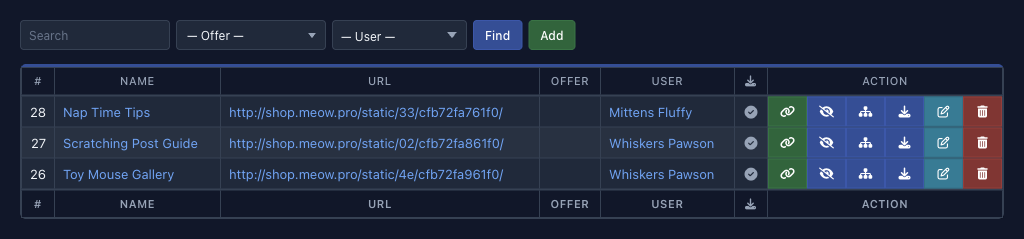
The Team › White sites item opens the team's shared white site storage. You add, download, edit, and delete sites the same way as the personal ones: a ZIP archive or a URL, the file manager, the icons in the row. Everything is described in the White sites section. Below is only what sets the team storage apart.
- The storage is shared. Everyone who can open it sees all the team's sites and can hide, change, add files to, and delete any of them, no matter who added it. The table has a “User” column. Above the table are a search by name, the Offer and User lists, and the Add button.
- The Settings window has a User list. It comes after the Offer list. The “— not linked —” value leaves the site unowned, and any member or the teamlead can select it for their flows.
- The link to a member decides who can select the site. The White site list in the Cloak and filters block of a flow (Where to set it up) and of a split test shows only the sites that are enabled for display, match the offer, and meet the condition from the table.
| How the site is linked | Who selects it in a flow or split test |
|---|---|
| “— not linked —” | Any team member, including the teamlead |
| A member | Only that member. The other members, including the teamlead, do not see the site in the list |
How a team white site is linked to a member.
The link affects only the choice in a flow. Everyone who can open the storage can edit and delete the site. Linking to an offer works as for the personal sites: a site with no link fits any flow, and a linked site is visible only to the flows of that offer.
 12