The flow URL is the address you send traffic to. The network can build it in four ways, and you pick one in the flow settings. For offers with ready-made sites, you can download a landing or prelanding as an archive and host it yourself. An agency has no flows. It builds a link in the link generator and downloads a ready-made site from the offer page (how to do it).
For the other flow settings, see Flow settings.
URL kinds#
Select the URL kind on the flow page, in the Flow URL kind list. The list appears for offers that work by link. Offers that use a symbolic code instead of a link don't have it. Changes in the flow save at once, and the link at the top of the page updates right away.
| Kind | What the URL holds | Redirect | When the URL changes |
|---|---|---|---|
| Classic link | The address of the site (the prelanding, or the landing if there is none) and all the flow's parameters | No | When you change the site, pixels, tags, or other flow settings |
| Short link | The go prefix and the flow number, then tags |
Yes | Only when you change tags or the domain |
| Encoded link | The go prefix and the flow code instead of the number, then tags |
Yes | Only when you change tags or the domain |
| Direct link | The same code with the x prefix, then tags |
No for sites on the network's server, yes otherwise | Only when you change tags or the domain |
Four kinds of flow URL.
Here are the four links of one flow:
Classic       https://go.meow.pro/whisker-boost-vet-review/?flow=79&l=405&utm_source=facebook&utm_campaign=wb_es
Short         https://go.meow.pro/go79?utm_source=facebook&utm_campaign=wb_es
Encoded       https://go.meow.pro/go-859b088961cd565c?utm_source=facebook&utm_campaign=wb_es
Direct        https://go.meow.pro/go-x859b088961cd565c?utm_source=facebook&utm_campaign=wb_es
The network sets the go prefix, so yours may differ.

How the kinds differ
Classic link goes straight to the offer's site and carries everything set up in the flow in its parameters: the flow number, the landing (if the link leads to a prelanding), pixel IDs, tags, SubID, the click price macro, and Deeplink. It has no redirect, so it changes with those settings. If you change the landing, prelanding, a tag, or a pixel, replace the link in your ad campaign.
Short link is made of a prefix with the flow number plus tags: UTM, SubID, sub1–sub5, uuid, erid, “Customer”, and the click price macro. The network fills in the landing, prelanding, pixels, filters, and Deeplink itself when a visitor follows the link. So the short link stays the same until you change the tags or the domain, which makes it handy to leave in ads for a long time.
Encoded link works the same way, but it holds a code instead of the flow number. Knowing only the flow number, you can't build such a link.
Direct link uses the same code, but the site opens at that same address with no redirect, so the visitor stays on your domain. This works for sites on the network's server. If the offer is external and the visitor has to go to someone else's site, the direct link redirects, like the encoded link.
Whichever kind you select, the other flow links work too. Your choice only decides which one the network shows in the link field. The API returns all four at once in the urls field of the wm/flows function.
If the network forces a redirect for all links, the classic link looks like the short one. A split test has three URL kinds: Classic link (with the test number, in effect the same as a flow's short link), Encoded link, and Direct link. It has no link straight to the site. For more, see Split tests.
Link domain#
The Domain list and the glue button (with the “Glue to flow” label above it) sit next to the URL kind list. They appear if the network allows domain parking and your list has at least one domain: your own, parked in Parked domains, or a shared domain of the network.
The domain you select goes into a link of any kind. In the classic link it replaces the site address. In the other kinds it replaces the network address. The — use default domain — item takes the domain selected in the “Redirect domains” field (the Default domains button on the Parked domains page). If none is selected, the network address stays, and the classic link keeps the address of the site itself. To learn how to park a domain, see Domain parking.
Glue a domain to the flow to send traffic straight to the domain:
-
Select the domain. In the Domain list, select your own active domain. In the parked domains list, its status is “Working”.
-
Click the glue button. While the domain is not glued, the button reads Glue domain.
-
Send traffic to the domain. On the home page of the glued domain, the network opens the flow's site the same way as a direct link does: no redirect for sites on the network's server.
While the default domain or a shared domain of the network is selected, the button is disabled, because you can glue only your own domain. The button label shows the state:
- Glue domain — the domain is free. Click the button to glue it to this flow.
- Domain glued — the domain is glued to this flow. Click the button and confirm to remove the glue.
- Glued elsewhere — the domain is already glued to another flow or split test. Click the button and confirm to move the glue to this flow.
One domain can be glued to only one flow or split test, but you can glue any number of domains to a flow. For the details of gluing a domain and removing the glue, see Domain parking.
Downloading ready-made sites#
For offers with ready-made sites, the network can give you a landing or prelanding as an archive. The site in the archive is already set up for your flow: it has the prices of the selected country, the pixels, and the flow codes, and the landing form sends orders in your name. The download icon appears only next to sites that the network has prepared an archive for.
-
Open the flow. In the Flows menu, select Flows by offers and click the flow name.
-
Find the site. In the Landing and Prelanding tables, sites with an archive have an icon in the download column. Click it.
-
Fill in the “Download” window. The site you chose is already in the URL field. The other fields are described below.
-
Click Download. The browser saves the file
site-<site ID>.zip.

You can also download a site from Offers. Open an offer, and the Landings and Prelandings tables show the same icon next to the site name. The icon appears if you have a flow for this offer. The window gets an extra Flow field: select the flow to prepare the site for. The URL field is called Site there.
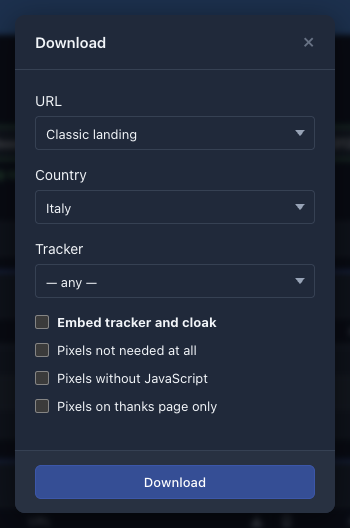
| Field | What to select |
|---|---|
| URL | Which site to download. The site whose icon you clicked is already selected. |
| Country | The country to use for prices and currency. The list holds the offer's countries, and for a worldwide offer, all countries. For where the prices come from, see Price and name substitution. |
| Tracker | The tracker to prepare the site for: a hidden field with its macro is added to the forms. The value — any — adds nothing, except in one case. If the flow's SubID field holds exactly {subid}, the forms get a hidden subid field with the value {subid} (Another tracker). The macro table is in Trackers, and connecting a site to a tracker is described on the Third-party trackers page. |
| Embed tracker and cloak | Embeds into every page a visitor check against the traffic filters and Trafback of your flow. The page shows the site, the white page, or redirects the visitor. If the flow has a white site selected, it goes into the archive by itself. With this checkbox, the archive becomes a ready-to-run setup. The checkbox is unavailable if a tracker is selected. |
| Pixels not needed at all | Adds none of the pixels and counters of ad networks and analytics systems described on the Tags and pixels page. The custom header and footer code from the flow settings stays in. |
| Pixels without JavaScript | Inserts a shortened version of the pixels without scripts (image pixels). Such pixels slow down the loading of the site less. |
| Pixels on thanks page only | Inserts the pixel code only on the “Thanks” page. The pages of the site itself keep only the code that stores the pixel IDs in a cookie. |
Fields of the “Download” window.
The landing in the archive has an api.php file, and it holds your API key in plain text. The key opens your whole API, so the archive is personal. Don't publish it or hand it to anyone. If the archive may have fallen into the wrong hands, reset your API key. For more, see the offer/download description.
The landing from the archive sends orders through the API, so the network's Administrator must enable sending orders by API for you. You can't enable it yourself, so check this with your manager. The offer must accept orders by API too, or the form's orders are rejected. A prelanding doesn't need the API.
The archive is built anew on every download. After you change the flow settings (pixels, prices, tags), download the site again. If the network can't build the archive (the offer is disabled, you have no access, the site has no archive), the list of offers opens instead of a file.
For what the archive contains and how to install it on hosting, see What is inside the archive and How to install on your hosting. The API serves the same sites: the offer/download function takes the same parameters (site, flow, geo, tracker, addtracker, nopixel, short, nopage).
For an agency
An agency has no flows, so it downloads a site only from Offers: the icon sits next to the site name on the offer page. The window doesn't ask for a flow and doesn't offer Embed tracker and cloak. It keeps the site, country, tracker, and the three pixel checkboxes. The site is already set up for your agency ID (exti), and the landing sends orders with the agency's key. An agency doesn't need a separate right to send orders by API, but the offer must accept orders by API.
Link generator for an agency#
An agency works with offers directly, without flows, and builds a link in Link generator in the Traffic menu, if the network shows it. The link goes straight to the offer's site, like a flow's classic link: no redirect and no domain choice.
-
Select the offer. The Offer list holds the offers available to you.
-
Select the sites. In the Landing list, select a landing. The landing is required. The Prelanding list appears only if the offer has prelandings. The “—” item in it means “no prelanding”.
-
Fill in the macros and tags. The Click ID macro, Affiliate ID macro, UTM Source, UTM Content, UTM Campaign, UTM Term, UTM Medium, and SubID fields are optional. An empty field stays out of the link.
-
Copy the link. It shows in the top Your flow URL field. The button next to it opens the link in a new tab.
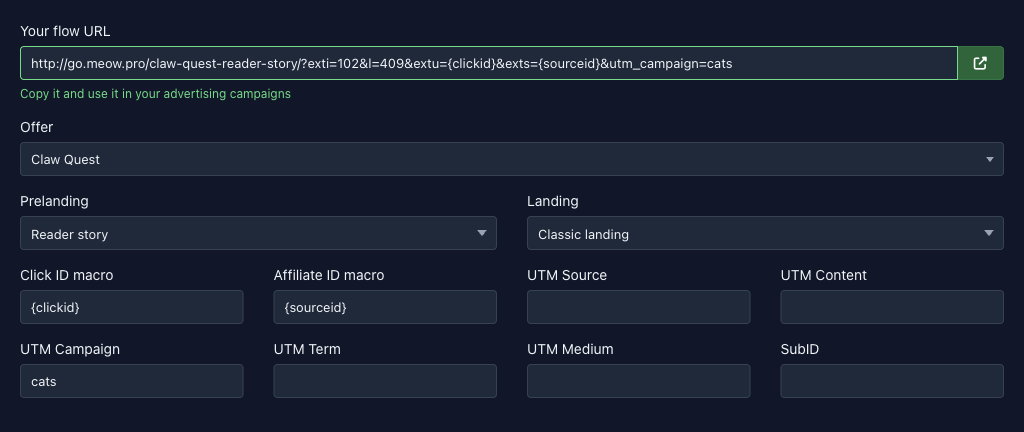
The link rebuilds on every change to the fields. If it can't be built (for example, the offer has no landings available to you), the border of the link field turns red. The macros and tags you enter are saved in your profile, so the fields are already filled in on your next visit.
Here is a link with a prelanding:
https://lk.dalead.pro/claw-quest-reader-story/?exti=102&l=409&extu={clickid}&exts={sourceid}&utm_campaign=catsThe link starts with the address of the offer's site, followed by parameters:
exti: your agency's ID in the network. It is always there.l: the landing. It appears when a prelanding is selected, because the link then leads to the prelanding.extuandexts: the values of the Click ID macro and Affiliate ID macro fields.subid,utm_source,utm_campaign,utm_content,utm_term, andutm_medium: the values of the SubID field and the UTM fields, if you filled them in.
In the macro fields, enter what your tracker or ad network will fill in, for example {clickid}. The link takes the value as is, and the real number is filled in when someone follows the link. For what extu and exts mean and how they get into reports, see Tags and pixels.