On this page
Not all traffic suits an offer. Bots and spy services open your flow URL, and so do visitors from the wrong countries and people who did not come from an ad. Flow filters check every visitor before they see the landing. A visitor who passes goes to the offer. A visitor who is filtered out gets trafback: the white site or URL you set for such visits.
There are two ways to filter traffic:
- Simple filters are checkboxes right in the settings of a flow or a split test. This page covers them.
- Filtering campaigns are separate sets of rules with their own lists. Create them in the menu Flows › Traffic filter and connect them to flows and split tests: Filtering campaigns and white sites.
Where to set it up#
Filters and trafback are in the Cloak and filters block on the flow settings page. Open Flows › Flows by offers, then click the flow name or the Settings button. The other fields of the page are described in Cloak and filters on the “Flows” page.
Not every offer has the block. If the offer forbids trafback, the settings have no block, and a URL passed through the API is not saved. The network can also allow trafback for you personally. Then the block is there even for an offer that forbids it. The White site list appears if the network allows white sites and you or your team have enabled ones. The Connect to traffic filter list appears if you have created at least one filtering campaign.
An agency has no flows, so it has no trafback block in a flow. It can filter visits and set the trafback URL in a split test, in the same Cloak and filters block: Filters. A link from the Link generator does not pass through the flow filters. If the network set its own restrictions on an offer's site, a visitor filtered out by them goes to the trafback URL of that site, when the network specified one.
 123456
-
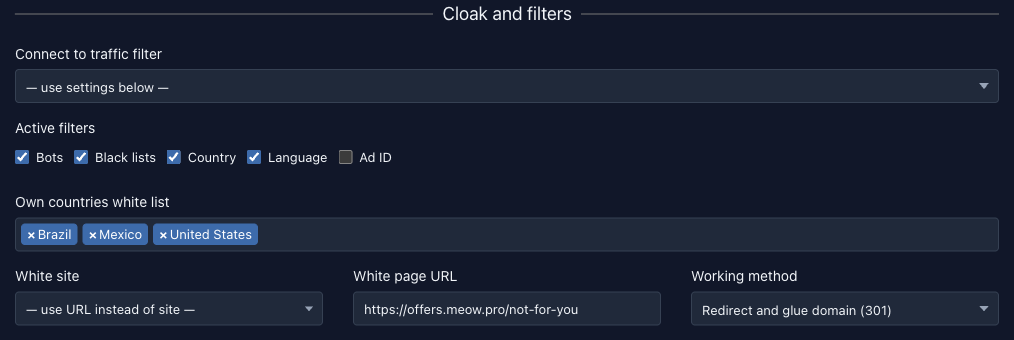
Turn on the filters. In the Active filters row, select the filters you need: Bots, Black lists, Country, Language, Ad ID. In a new flow all of them are off, and until at least one is on, trafback is shown to no one.
-
Set the countries. For the Country and Language filters, select countries in the Own countries white list field. If you leave it empty, the countries of the landing or the offer apply: Country list.
-
Choose where to send the filtered visitors. Select a White site or enter a URL in the White page URL field, then select a Working method: Where a filtered visitor goes.
-
Test it. Open the flow URL in a way that gets you filtered out: How to test.
Changes are saved automatically, like the other flow settings: Flow settings.
Simple filters#
Each enabled filter checks a visitor in its own way. A visitor who fails at least one filter gets trafback.
| Filter | Who it filters out |
|---|---|
| Bots | Visitors the platform does not consider a person with an ordinary browser: search and other robots, scripts and utilities (curl, python-requests and the like), headless browsers, link preview and ad checking services, and also visits that come from the pages of known spy services and ad checking services. A visit whose User-Agent header does not let the platform identify the system or the browser also counts as a bot |
| Black lists | Visitors whose IP address is on the black lists: the network's shared lists, your own lists, and your team's lists. You manage your own lists on the Filtering campaigns page |
| Country | Visitors whose country, detected by the IP address, is not in the country list |
| Language | Visitors whose browser language matches none of the countries in the list. The platform reads the languages in the Accept-Language header and lets the visitor through if at least one matches. A visit without this header is filtered out |
| Ad ID | Visitors whose link has no ad click identifier: details |
Simple flow filters.
To test the link, use an ordinary browser. The Bots filter filters out a curl request as a bot.
Country list
The Country and Language filters work from a list of allowed countries:
- In the Own countries white list field, select the countries you want traffic from.
- If the list is empty and the flow URL opens a landing directly, the countries of that landing are used, if the network specified them on the site.
- If there are none, the offer's countries from its page are used.
- If the offer has no countries either, or if Whole world is selected in the list, neither filter filters anyone out.
A split test has no fallback list from the offer: Split test filters.
Ad ID
The Ad ID filter lets a visitor through only if the link has a non-empty parameter from this list:
clid, fbclid, gclid, gbraid, wbraid, adclid, adsclid, rb_clickid, ttclid, ttlid, twclid, msclkid, yclid, bbg, external_id, adid, unique_id, uid
For example, Facebook adds fbclid, Google adds gclid, and Bing adds msclkid. A person who opens the link by hand carries no such parameter. Turn the filter on only for sources that add a click identifier, otherwise it filters out all your traffic. The identifier value is available in the trafback URL as the {uid} macro: Macros.
A campaign instead of simple filters
The Connect to traffic filter list connects a ready filtering campaign to the flow. While a campaign is selected, the Bots, Black lists, Country and Language checkboxes and the Own countries white list field are hidden. On save, the platform clears these checkboxes and the list. The white site, the URL and the method stay: trafback uses them also for visitors the campaign filtered out.
What a campaign checks is described on the Filtering campaigns and white sites page.
Order of checks
The platform checks a visitor in turn: campaign, bots, ad ID, country, language, black lists. The check stops at the first one that fires, and its reason is written to the click. Disabled checks are skipped.
The network can turn on the bots, country, language and black list checks for all flows at once. Then they work even if the checkbox in the flow is cleared.
If a visitor reaches the flow through a split test, the flow's own filters do not apply. The split test's filters work instead: Filters.
Where to see filtered visitors
A filtered visit is not lost. The platform records it as a click with the reason it was filtered out. In Browse clicks, the reason is in the Filter column: “Bot”, “BL”, “Geo”, “Lang”, “Ad ID” or “Filter” (a campaign). To select clicks with one reason, use the Filter list in the search panel. In the reports of the Statistics section, use the Filtering result list in the search window. In both lists the reasons are named “Ban: bot”, “Ban: blacklist”, “Ban: country”, “Ban: language”, “Ban: ad click ID” and “Ban: filters”. The log columns are described in Leads and clicks. For how filtered clicks enter the reports, see Filtered traffic is counted in different ways.
Where a filtered visitor goes#
Three fields of the block control trafback:
| Field | What it does |
|---|---|
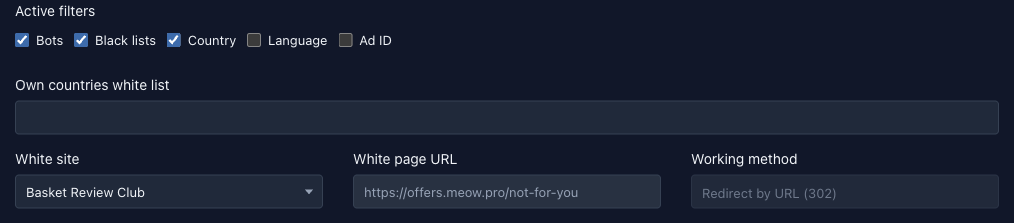
| White site | A site from your white site storage that the visitor sees. The “use URL instead of site” item keeps the URL in use. To add a site, see White sites |
| White page URL | The URL the visitor is sent to. It must be a full, valid URL with https://, otherwise the field is cleared on save. You can use macros in the URL |
| Working method | How to show the URL: by a redirect, a page or the contents of the URL: Working methods |
Trafback fields.
The platform chooses what to show in this order:
- If a white site is selected, the visitor sees it. The White page URL and Working method fields are unavailable and unused.
- Otherwise the URL from the White page URL field and the selected method are used.
- If there is no URL, the platform takes the trafback URL that the network may have set on the offer's site itself (the landing or the prelanding).
- If there is none either, the visitor is redirected to the home page of the domain the flow URL was opened on.
Working methods#
The Working method list selects how the visitor gets the trafback URL. The default method is “Redirect by URL (302)”. A split test has the same methods: Variant settings.
| Method | What the visitor gets |
|---|---|
| Redirect by URL (302) | A 302 Found response, and the browser goes to the URL at once. The platform appends the parameters of the original link to the URL: tags, subid, the ad click identifier. The flow's service parameters are not passed on |
| Redirect and glue domain (301) | A 301 Moved Permanently response, and the parameters of the original link are not added. The browser may remember this response and go to the URL on its own next time, without opening your link. The method's name refers to the belief that 301 “glues” your link to the target domain, so the ad shows the target domain. The platform only sends the 301 header. How an ad network treats it is up to the network |
| Redirect via separate page (meta) | A page with three blinking dots, from which the browser goes to the URL after one second. The server response is an ordinary 200, with no 301 or 302 headers. The HTML meta refresh tag does the redirect |
| Redirect via script (js) | A blank page from which a script opens the URL half a second after the page loads. There are no redirect headers. Without JavaScript the redirect does not happen |
| Show the URL in the iframe | A page with a full-screen iframe that loads your URL. Your link stays in the address bar. Sites that forbid being shown in a frame do not open in this mode |
| Show contents by the URL | The platform loads the page at the URL itself and shows it, adding a base tag with the URL of the loaded page at the top. So images, scripts and styles load from the original site, and empty action attributes in forms get its URL. GET and POST requests work. If the original site answers with a redirect, the visitor gets the same redirect |
| Show contents by the URL without changes | The same, but without the base tag and the action replacement. Paths to images, scripts, styles, fonts and form actions on the original site must be absolute, with the domain, otherwise the resources do not load |
| Show blank page | A 200 response with no content, not even HTML tags |
| Show error page | A page in the style of an nginx web server error, for example “404 Not Found”, with the same response code. The code is picked from a list of codes from 400 to 526 by the visitor's IP address, so one visitor always sees the same error. You cannot set your own code |
Working methods.
These two methods do not use the URL, but fill the White page URL field with any valid URL anyway. If the field is empty, the methods do not work, and the visitor is redirected to the home page of the domain.
Macros in the trafback URL#
You can use macros in the White page URL field: the platform substitutes the current visitor's data into them. The values are inserted URL-encoded. The same macros work in the trafback URL of a split test. Any other text in curly braces stays in the URL as written.
| Macro | What is substituted |
|---|---|
{geo} |
The visitor's country code in lowercase, for example us |
{host} |
The domain the flow URL is opened on |
{flow} |
The flow number |
{utms} |
The utm_source tag from the original link |
{utmc} |
The utm_campaign tag |
{utmn} |
The utm_content tag |
{utmt} |
The utm_term tag |
{utmm} |
The utm_medium tag |
{subid} |
The subid parameter |
{uuid} |
The uuid parameter. If the link contains erid, its value is substituted |
{uid} |
The ad click identifier: the value of the first parameter found from the Ad ID filter list, in list order |
{customer} |
The customer parameter |
Trafback URL macros.
Agencies also get {exti}, {extu} and {exts}: the values of the link parameters with the same names, described on the Tags and pixels page.
Example. The White page URL field holds this URL:
https://meow.pro/sorry?geo={geo}&src={utms}&click={uid}A visitor from the United States comes through a link with utm_source=cats-feed and gclid=abc123. With the “Redirect and glue domain (301)” method, the visitor gets:
https://meow.pro/sorry?geo=us&src=cats-feed&click=abc123With the “Redirect by URL (302)” method, the platform also appends the parameters of the original link to this URL: &utm_source=cats-feed&gclid=abc123.
How to test#
Test the setup in a way that gets you filtered out.
-
Pick a condition. Temporarily turn on the Country filter and select a country you are not in from the Own countries white list field. This is the easiest way.
-
Open the flow URL. Open it in an ordinary browser. Trafback should open instead of the offer.
-
Find the click. In Browse clicks, the filtered visit is the first row, and the reason is in the Filter column: Leads and clicks.
-
Restore the settings. Remove the condition, otherwise real traffic is filtered out too.