On this page
AlterCPA has three tools for tracking traffic and connecting to ad networks. Tags are link parameters that are saved in every click and lead. You use them to build statistics and to match leads with trackers. Pixels and counters are codes of ad networks and analytics systems that the system inserts into offer sites by itself. Custom code is your own snippets in the header and footer of sites. Set all of this up in the flow settings, in the Postback and tracking block (Creation and settings), or with link parameters.
Tags in the link and API#
Append a tag to the link or pass it in the API when you send a lead (leads/add). The platform records it in the click and in the lead. Some tags serve statistics and search, others only the exchange of data with trackers and ad networks. No tag can be longer than 250 characters.
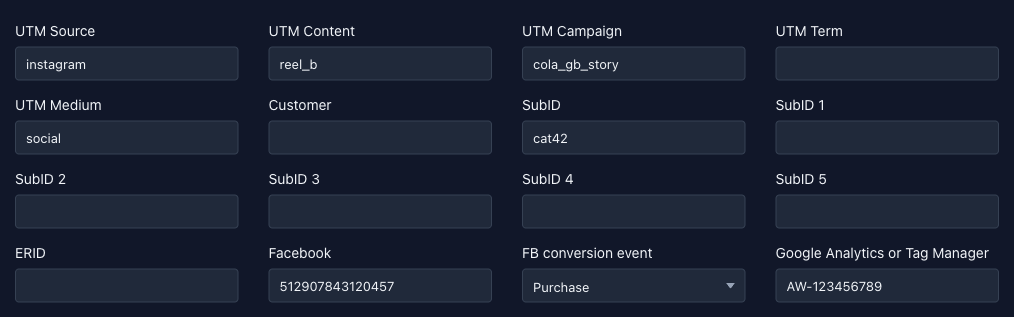
You can set the values in advance in the flow settings. They go into the flow URL by themselves, including the short one (URL kinds). You can also append any tag by hand, for example with a macro of an ad network or tracker. The ad network fills in the value every time a visitor follows the link.
 123
Only the parameter names from the tables below work in a link. A link does not recognize abbreviations such as utms or us. Only the leads API understands them, and there each tag has more synonyms (see the parameter table of leads/add).
Main tags
Main tags show in statistics. Use them to search for leads and clicks (Leads and clicks), to group reports (Hierarchical reports) and to attach manually uploaded expenses (Expenses).
| Tag | Link parameter | What to put in it |
|---|---|---|
| UTM Source | utm_source |
Name of the traffic source. |
| UTM Campaign | utm_campaign |
Name or ID of the ad campaign. |
| UTM Content | utm_content |
Name or ID of the creative. |
| UTM Term | utm_term |
The keyword the ad was shown for. |
| UTM Medium | utm_medium |
Name or ID of the ad group. |
| Domain | utm_domain |
The domain where the event happened. You don't need to put it in the link: the platform records the domain the visitor came to. |
| Customer | customer, also utm_user |
ID of the ad customer. |
| SubID | subid |
A free-form tag, for example your tracker's click ID or an application number. |
Main tags.
Example of a link with tags:
https://lk.dalead.pro/catnip-cola-reader-story/?flow=84&l=415&utm_source=instagram&utm_campaign=cola_gb_story&utm_content=reel_b&subid=cat42The flow settings always have five UTM tags and “Customer”. SubID and the tags for trackers appear if the network allowed them for the offer. The platform records the “Domain” tag by itself.
An agency builds the link in the Link generator, which has fields for UTM tags and SubID. It has no fields for “Customer”, SubID 1–5 or ERID.
Tags for trackers
These tags serve the technical side of integration with third-party trackers and ad networks. You pass them in the API, and postbacks return them in macros of the same name in curly braces, for example {uuid} or {sub1}.
| Tag | Link parameter | Notes |
|---|---|---|
| UUID / ERID | uuid, erid, x64 |
One tag under three names. In the flow settings it is called ERID, in the lead and click cards it is UUID. |
| SubID 1–5 | sub1…sub5, also subid1…subid5, sid1…sid5 and xm1…xm5 |
Five additional tags. In the flow settings they are called SubID 1…SubID 5. |
| Ad network click ID | clid, fbclid, gclid, gbraid, wbraid, adclid, adsclid, rb_clickid, ttclid, ttlid, msclkid, yclid, bbg, adid, unique_id, uid |
The platform records any of these names as the ad ID. If a link has several of them, one is saved. If the visitor has the Facebook _fbc cookie, the ID comes from it. |
Tags for trackers.
A postback returns the ad ID under any of these names: the {fbclid} macro gives the same value as {gclid}. The full list of postback macros is on the Postbacks page. The flow filter Ad ID blocks visits without a click ID (Filters and trafback).
The uuid and sub1…sub5 tags and the ad ID are recorded in the click and the lead and show in their cards. You cannot use them to search for leads and clicks, group statistics or attach expenses. For statistics, use the main tags: UTM, “Domain”, “Customer” and SubID.
Tags for agencies
If you work as an agency, you have two extra tags for your own numbering of leads and traffic sources:
extu— an ID of the lead or click on your side, for example in your CRM or tracker. In the cabinet it is “Source order ID”, in reports it is “Agency lead”.exts— an ID of your source or affiliate. In the cabinet it is “Source affiliate ID”, in reports it is “Agency source”.
You don't have to set them, but it pays off. You can find a lead by your ID in leads/list (filter uid for extu, filter src for exts), and a postback returns them in the {extu} and {exts} macros (Macros for agencies).
Where they come from and where they show:
- In a link, the Link generator adds them. Enter the values for
extuandextsin the Click ID macro and Affiliate ID macro fields. The link also carriesexti, the ID of your agency in the network. - In the API they are the
extuandextsparameters of theleads/addfunction. Ifextuisautoor empty, the platform issues a sequence number. - In the lead and click lists they are filter fields (Leads and clicks). In statistics they are the External marks report and the “Agency lead” and “Agency source” slices (Statistics for agencies).
Ad networks and analytics systems#
Pixels and counters are inserted into sites automatically. Every page of the site gets the visit code, and the thanks page also gets the conversion code. If the site sent an order with an error, the pixels on the thanks page do not load.
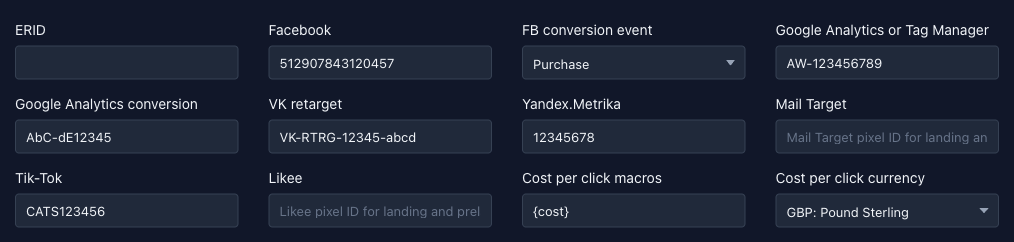
You can enter the pixel ID in the flow settings or pass it in the link as a parameter (Counters in the link). The parameter in the link overrides the flow field, so you can change a pixel without touching the flow. The platform stores the ID in the visitor's cookie for 30 days. This way the thanks page, which the visitor reaches without parameters, sends the conversion to the same pixel. One ID works on all pages: the prelanding, the landing and the thanks page.
 123
Which systems are available depends on the network and the offer. The flow settings show only the fields that the network allowed for this offer. If a field is missing, the network did not allow that system for the offer.
An agency cabinet has no flows, so it has no pixel and counter fields either. An agency adds pixel IDs to the link from the Link generator by hand, with the parameters from the Counters in the link section, for example &fb=512907843120457. The download window for a ready-made site has three checkboxes: Pixels not needed at all, Pixels without JavaScript and Pixels on thanks page only (Downloading ready-made sites for an agency). Such a site also takes pixel IDs from the link parameters.
Where pixels work:
- On offer sites that the network shows from its own addresses. All the systems in the table below work there.
- On sites downloaded from a flow. What the download window adds and removes is described in Downloading ready-made sites.
- In offers that load your code through an iframe, the pixels load in that iframe: Custom code in an iframe.
| System | Flow field | Parameter | On site pages | On the thanks page |
|---|---|---|---|---|
| Facebook, FB conversion event | fb, fbe |
PageView, and ViewContent after 30 seconds on the page |
PageView and the conversion event, Lead by default |
|
| Google Analytics or Tag Manager | Google Analytics or Tag Manager, Google Analytics conversion | ga, gad |
Counter connection | Counter connection. For Analytics with a conversion set, also the conversion event |
| VK | VK retarget | vk |
Page visit | Visit and the lead event |
| Yandex.Metrika | Yandex.Metrika | mtrk |
Counter | Counter |
| Mail Target | Mail Target | mt |
pageView |
pageView and itemView with type purchase |
| Tik-Tok | Tik-Tok | tt |
page |
page and SubmitForm |
| Likee | Likee | lki |
page_view |
page_view and form |
Pixel events on offer sites.
If the table shows no conversion event on the thanks page for a system (Yandex.Metrika, Tag Manager), set up a goal in the system itself, for example for the word success in the page URL. The URL of the thanks page contains it by default.
In the Facebook field, enter the numeric pixel ID, for example 512907843120457. To use several pixels, separate them with commas. Each one is initialized on the page.
The FB conversion event list sets the event for the thanks page, Lead by default. You select it from Facebook's standard events instead of typing it: AddPaymentInfo, AddToCart, AddToWishlist, CompleteRegistration, Contact, CustomizeProduct, Donate, FindLocation, InitiateCheckout, Lead, Purchase, Schedule, Search, StartTrial, SubmitApplication, Subscribe, ViewContent. You cannot enter a pixel ID here. In a link, pass the event in the fbe parameter. If you need Lead, leave the parameter out.
Facebook Conversion API server pixel
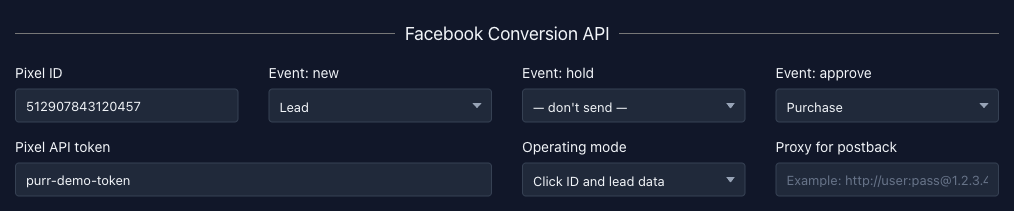
Server events do not depend on the visitor's browser. The platform sends them to Facebook itself when a lead arrives and when its phase changes. The Facebook Conversion API block is in the flow settings if the network allowed it for the offer.
 1234
The block has these fields:
- Pixel ID — the numeric ID. You can enter only one pixel.
- Event: new, Event: hold, Event: approve — the event that goes out when a lead gets the “Wait”, “Hold” or “Approve” phase (lead phases). The “don't send” option turns the phase off. No events go out for the “Cancel” and “Trash” phases.
- Pixel API token — the access token for the Conversion API. Without it and without the pixel ID, nothing is sent.
- Operating mode — how much data to pass:
- “Click ID only” — the Facebook click ID plus technical data: the lead number, and the visitor's IP address, browser and country. If the lead has no click ID, the event is not sent.
- “Click ID and lead data” — in addition, the first name, last name, email and phone from the lead, as SHA-256 hashes. Without a click ID the event is not sent either.
- “Lead data even without click ID” — the same, but the event is also sent for a lead without a click ID. The platform creates the ID itself.
- Proxy for postback — the proxy that the request goes through, in the format
protocol://login:password@host:port, for examplehttp://user:pass@1.2.3.4:56.
For the Purchase, StartTrial and Subscribe events, the platform adds the order amount and its currency.
To get a token, you need access to your pixel in Facebook. An ordinary Facebook token does not work. You need a special Conversion API token:
-
Open Events Manager and click “Connect data sources”.
-
Select “Web” and click “Connect”.
-
Enter a name for the new data source.
-
Add the site URL or select “I don't have a website”.
-
Select self-service setup and the “Meta Pixel and Conversions API” connection method, then click “Next”.
-
Select manual Conversions API setup and click “Continue”.
-
Click “Continue”, check the settings and click “Confirm setup”.
-
Under “Implement the API yourself”, open “Implementation guide”.
-
On the page that opens, click “Generate access token” and paste the token into the Pixel API token field.
Every send is recorded in the postback log together with Facebook's response. If the response has an authorization error (OAuth), the token is wrong or revoked. Create a new one by the instructions above.
Google Analytics and Tag Manager
In the Google Analytics or Tag Manager field, enter an ID such as AW-123456789, GTM-ABC1234 or G-ABC1234567. IDs that start with GTM or G- connect as Tag Manager. All others connect as Analytics or Ads (gtag).
The Google Analytics conversion field is needed only for Analytics. In the conversion settings you will see a code like AW-123456789/AbC-dE12345. The part you need comes after the slash, AbC-dE12345 in the example. Enter it in the field, and the conversion event goes out on the thanks page. This field has no effect for Tag Manager: you set up the conversion in the container itself.
VK
The VK audience pixel goes on all pages. On the thanks page the lead event also fires. In the VK retarget field, enter the pixel ID, for example VK-RTRG-12345-abcd.
Yandex.Metrika
The counter connects on all pages with the click map, link tracking, accurate bounce rate and Webvisor. The platform does not send goals. Set them up in Metrika itself by the page URL, best of all by the word success. In the Yandex.Metrika field, enter the counter number, for example 12345678.
Mail Target
The counter sends pageView on all pages, and on the thanks page also itemView with type purchase. In the Mail Target field, enter the counter number.
Tik-Tok
The pixel goes on all pages and sends page. On the thanks page of offer sites, the SubmitForm event is added. In the Tik-Tok field, enter the pixel ID.
Likee
The pixel sends page_view on all pages, and on the thanks page also form. In the Likee field, enter the pixel ID.
Counters in the link#
You can pass the IDs as link parameters. In the classic flow link, the platform adds all the filled fields by itself. Other link types do not carry pixels: the platform takes them from the flow when a visitor arrives.
| Parameter | What it passes |
|---|---|
fb |
Facebook pixel IDs, several separated by commas. |
fbe |
The Facebook conversion event, if you need something other than Lead. |
ga |
The Google Analytics or Tag Manager ID. |
gad |
The Google conversion event ID. |
vk |
The VK pixel ID. |
mtrk |
The Yandex.Metrika counter number. |
mt |
The Mail Target counter number. |
tt |
The Tik-Tok pixel ID. |
lki |
The Likee pixel ID. |
Link parameters for pixels and counters.
Custom code on sites#
Some offers let you insert your own code into their sites for non-standard tracking systems. The fields Custom HTML code for the site header and Custom HTML code for the site footer are in the flow settings if the offer allows it. The header code goes at the end of the head tag, and the footer code at the end of body. The same code appears on all pages of the site, including the thanks page. The platform removes PHP inserts when you save.
You can use macros in the code. They are replaced with the current visitor's values: {utm_source}, {utm_campaign}, {utm_content}, {utm_term}, {utm_medium}, {customer}, {subid}, {uuid}, {erid}, {sub1}…{sub5}, {uid} (ad ID), {fb}, {fbe}, {ga}, {gad}, {vk}, {mtrk}, {mt}, {tt} and {lki}. Macros work on sites that the network shows from its own addresses. In an archive downloaded from a flow, the code is inserted as is, and its macros are not replaced.
To run the code only on the thanks page, check the page URL:
<script type="text/javascript">
  if (window.location.href.includes("success")) {
    // Your conversion code
  }
</script>
There is another way. The content of the <!--site-->…<!--/site--> block shows only on the main pages, and <!--thanks-->…<!--/thanks--> only on the thanks page. For example:
<!--site-->This is shown only on the site!<!--/site-->
<!--thanks-->This is shown only on the thanks page!<!--/thanks-->
And this is shown on all pages.
Custom code in an iframe#
Some external offers show an iframe with your code on their pages. The offer decides which fields you see in the flow settings:
- One field, Tracking code for all pages.
- Two fields, Tracking code for main pages and Tracking code for Thanks page. They hold different code for the site and for the conversion.
- No code fields. The offer accepts only the flow pixels and counters described above.
The platform removes PHP inserts when you save. If the offer supports system pixels, the pixels and counters from the flow fields load in the same iframe, together with your code. Tik-Tok then sends only page, without the SubmitForm event.
You can use macros in the code: {utm_source}, {utm_campaign}, {utm_content}, {utm_term}, {utm_medium}, {subid}, {uuid}, {sub1}…{sub5}, {fb}, {ga}, {vk}, {mtrk}, {mt}, {tt} and {lki}, and on the thanks page also {fbe} and {gad}. The platform takes the values of {uuid}, {sub1}…{sub5} and the UTM tags from the parameters of the iframe URL that the offer builds. If the offer does not pass them, the macro is empty. Pixel IDs and {subid} come from the flow settings, unless the iframe URL sets its own.